The Dataset Merging page is used to create datasets by combining data from two existing Explorer datasets.
The page is available under the Explorer Administration menu. Users must have the Create Dataset privilege to access the Dataset Merging page.
Users with the required privilege can select columns from the source datasets, configure aliases, define join conditions, and preview the merged dataset.
Opening Dataset Merging
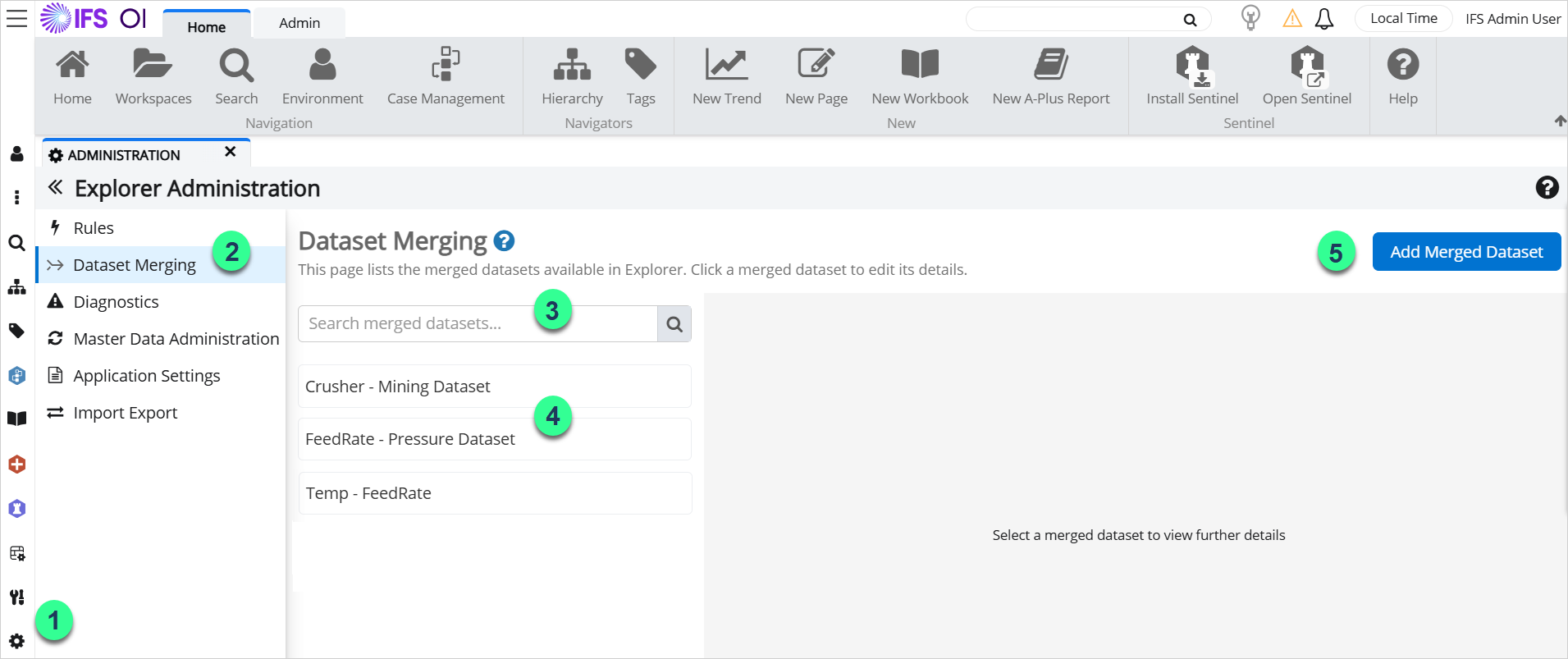
1. Click the Explorer Administration icon in the navigation menu.
2. Select Dataset Merging.
3. You can use the search box to locate a merged dataset.
4. Existing merged datasets are displayed in the list.
5. Click Add Merged Dataset to create a new merged dataset.
Viewing, Editing, or Deleting a Merged Dataset
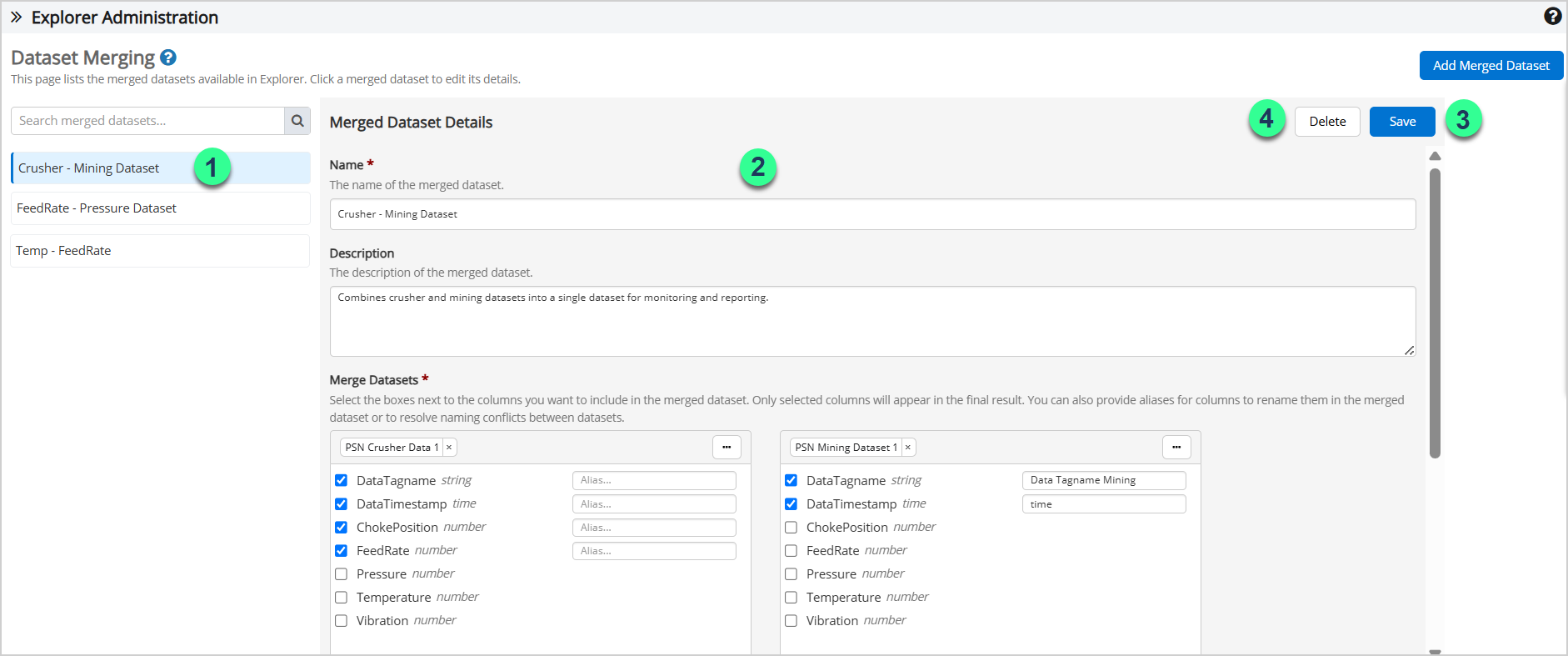
1. Existing merged datasets are displayed in the list. Select a merged dataset from the list.
2. The configuration for the selected merged dataset is displayed in the Merged Dataset Details section. Review the existing configuration or make any required changes.
3. Click Save to apply any changes.
4. You can use the Delete option to remove the merged dataset.
Creating a Merged Dataset
The merged dataset configuration consists of the dataset name and description, together with the Merge Datasets, Join By, and Sort By sections, which are used to define how the source datasets are combined.
This configuration automatically generates the required Dataset Query Language (DQL) query based on the selected options, removing the need to manually create DQL statements.
To create a merged dataset, click Add Merged Dataset. The merged dataset configuration is then displayed.
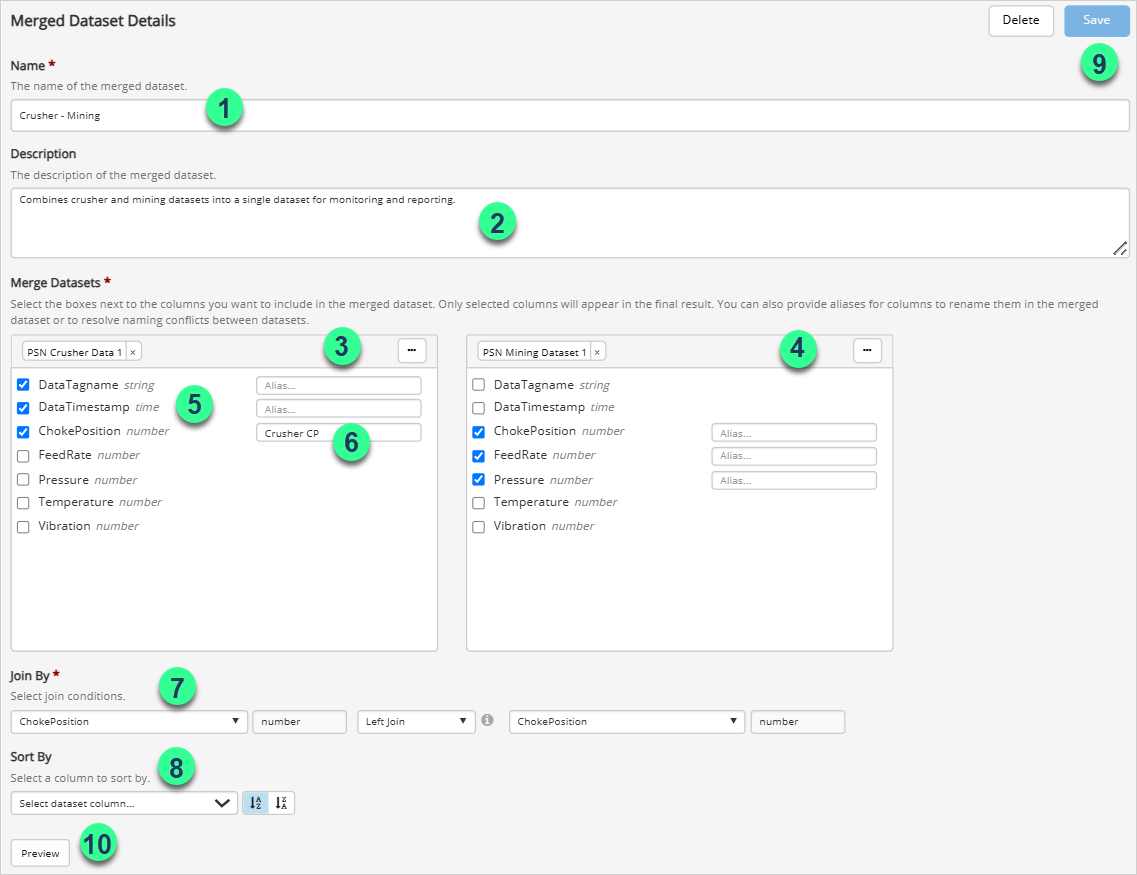
1. Enter a Name. The name must be unique and is used to identify the dataset in Explorer.
2. You can add an optional description to provide additional information about the merged dataset.
3. Under Merge Datasets, select a dataset from the left dataset selector.
4. Select a dataset from the right dataset selector.
5. Select the columns from the two datasets that should be included in the merged dataset.
6. You can also provide aliases for columns to rename them or to resolve naming conflicts between datasets.
7. Use Join By section to define the join conditions.
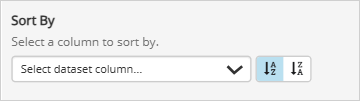
8. The Sort By section can be used to define the order of the merged dataset results.
9. Click Save.
10. Click Preview to review the merged dataset results.
Merge Datasets
The Merge Datasets section is used to select the two source datasets and determine which columns are included in the merged dataset.
The selected datasets are displayed side-by-side and show the available columns for each dataset.
Select the checkbox beside each column that should be included in the merged dataset.
Aliases can be used to rename selected columns. This can be useful for improving readability or resolving duplicate column names between the selected datasets.
Join By
The Join By section is used to define how records from the two datasets are combined.
Select a column from each dataset and choose the join type that should be applied.
The following join types are available:
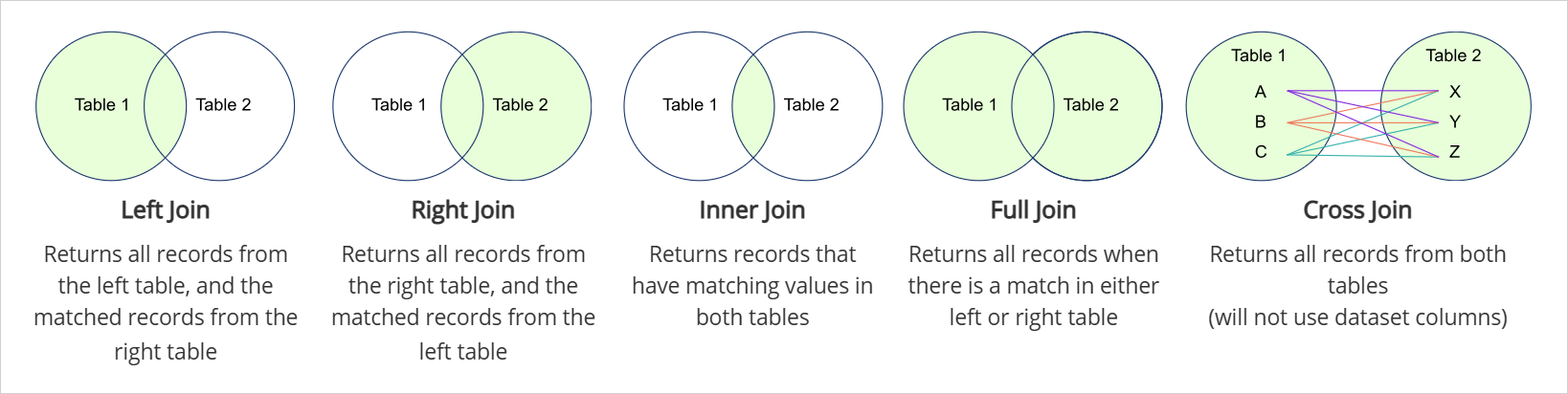
Note: When Cross Join is selected, the column selectors are disabled because no matching columns are required.
Using Entity Metadata
Dataset Merging supports joining datasets using entity metadata. If a selected column has associated entity metadata available, the Metadata option can be selected from the dropdown.
When Metadata option is selected, a metadata definition dropdown is displayed, allowing an entity metadata definition to be selected for the join condition.

When entity metadata is selected on both sides of the join condition, the selected metadata definitions must use compatible data types. The following compatibility rules apply:
- String-based metadata types (String, UniqueString, NamedList, and UniqueNamedList) are compatible with each other.
- Number-based metadata types (Integer, UniqueInteger, and Decimal) are compatible with each other.
- Boolean metadata is only compatible with other Boolean metadata.
- DateTimeUtc metadata is only compatible with other DateTimeUtc metadata.
Sort By
The Sort By section can be used to define the order of the merged dataset results.
The columns selected in the Merge Datasets section are available in the Sort By list. Select a column from the dropdown list and choose either ascending or descending order.
Dataset Preview
Once the configuration is completed, save the merged dataset. After the dataset has been saved, you can use the Preview button to review the merged dataset results.
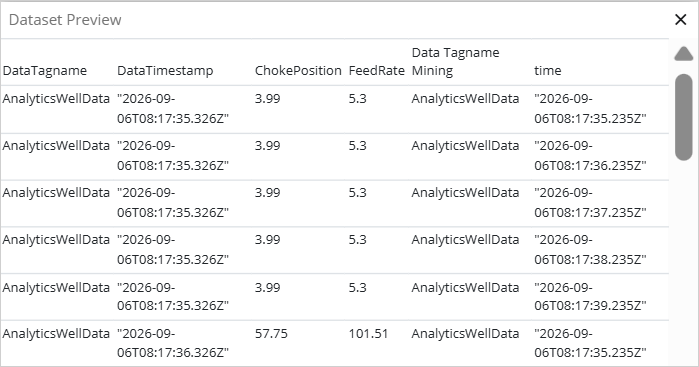
Note: If the preview remains in a loading state, it may indicate that the selected datasets or entity metadata are not compatible.
Release History
- Dataset Merging 26R1 (IFS Cloud Release)