This primer explains what OData is, how the OI OData Adaptor turns an OData query into a dataset, and how Explorer's objects map to the equipment and records in your operation.
What is OData?
OData (Open Data Protocol) is an industry-standard way to query data by writing options into a URL. Instead of writing SQL against a database, you name an object and add options that start with $:
Tags?$filter=startswith(Name,'A12_')&$select=Name,Description&$orderby=Name
This reads: from Tags, keep the rows whose Name starts with A12_, return only Name and Description, and sort by Name.
The same query language works in Explorer datasets, Excel, Power BI, Python and any other tool that can call a URL. Explorer uses OData version 4.
| Part | Example | Meaning |
|---|---|---|
| Object (entity set) | Tags | What to query |
| ? | Starts the query options | |
| Query option | $filter=... | One instruction, such as filter, select or sort |
| & | Separates query options |
How the OI OData Adaptor works
The OI OData Adaptor is a dataset adaptor, like the SQL Server or Oracle adaptors. The difference is where it gets its data: instead of connecting to an external database, it queries this Explorer server's own OData service.
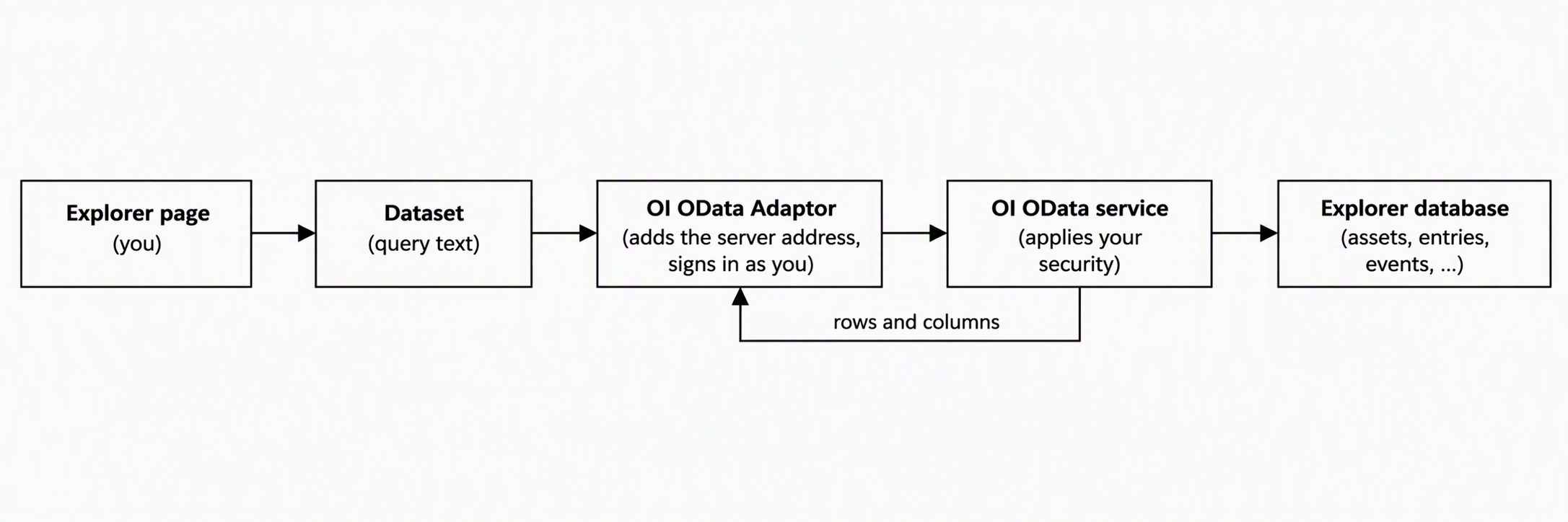
- A page asks for a dataset, passing any parameter values the user picked.
- The Data Broker replaces any parameter keywords in the dataset's query text.
- The adaptor adds the server's OData address to the front of the query text and sends the request, signed in as the user who is viewing the page.
- The OData service runs the query, applying that user's security, and returns the rows.
- The adaptor turns the rows into a dataset table: one column per property, with matching data types. See How results become columns.
Because the adaptor always talks to its own server, it needs no connection details. You choose the adaptor, save the datasource, and start writing queries.
Security
Every OI OData query runs as a real Explorer user. Results are filtered by that user's Explorer privileges:
- Assets, hierarchies, templates, tags, datasets and datasources follow their access control lists.
- Private workspaces, and the workbooks and pages in them, are only visible to their owner.
- Draft and Pending entries are only visible to their author, unless the user has Admin rights on the Entries module.
- An entry's fields are limited to the fields on its forms the user has access to, plus its built-in fields, unless the user is an entries admin.
- Attachments are only visible on entries the user can see.
- Sentinel events, usage analytics, security memberships (UserRoles, UserGroupUsers, UserGroupRoles) and log sheets aren't filtered. Every signed-in user sees all of them.
On a page, the dataset runs as the person viewing the page. Two users can open the same page and see different rows. This is deliberate: a dataset never shows a user data they couldn't see elsewhere in Explorer.
The adaptor never falls back to a system account. If a dataset is requested without a signed-in user, the request fails.
How Explorer's objects map to your operation
Explorer uses general-purpose names for its objects. This table maps them to everyday oil and gas concepts.
| Explorer object | What it is | Example |
|---|---|---|
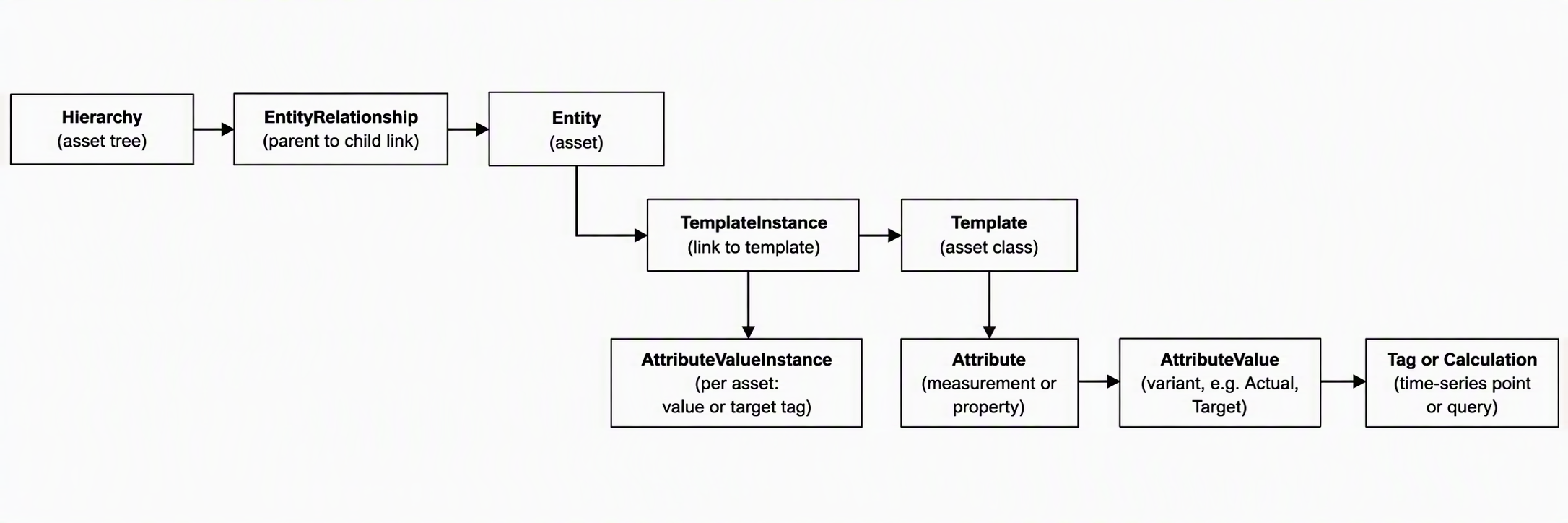
| Entity | A physical or logical asset | Well WELL-A12, separator SEP-01, compressor K-201 |
| Hierarchy | A named asset tree | "Production Hierarchy": Field ▸ Platform ▸ Manifold ▸ Well |
| Entity relationship | One parent-to-child link in a hierarchy | Platform ALPHA ▸ Well WELL-A12 |
| Template | An asset class: the standard measurements for a type of equipment | "Gas Lift Well", "ESP Well", "3-Phase Separator" |
| Attribute | A measurement or property defined on a template | "Tubing Head Pressure", "Water Cut" |
| Attribute value | A variant of an attribute, bound to a tag or calculation | "Actual", "Target", "Alarm High" |
| Template instance | The link that says "this asset uses this template" | WELL-A12 is a "Gas Lift Well" |
| Attribute value instance | The resolved value or tag for one asset | WELL-A12 Tubing Head Pressure (Actual) → PI tag A12_THP.PV |
| Tag | A time-series point in a historian or SCADA system | PI tag A12_THP.PV |
| Calculation / Dataset | A query or calculation against a datasource | "Daily Allocated Oil by Well" |
| Datasource | A connected source system | OSIsoft PI, AspenTech IP.21, SQL Server, Snowflake |
| Case / Issue / Summary / Time window | Entries with configurable fields | Deferment events, equipment issues, shift handovers, downtime windows |
| Form / Form schema | A form definition, and the fields behind it | "Well Downtime" form |
| Named list | A drop-down picklist used by forms | Deferment reason codes |
| Log sheet | A grid of readings entered by time | Hourly flow and pressure on a shift log |
| Sentinel event | An event raised by a Sentinel monitor | "THP below minimum on WELL-A12" |
| Workspace / Workbook / Page | Explorer content | The "Production Ops" workspace, its shift-log workbook and its trends |
| Analytics event | One recorded action in Explorer | A user opening a page or a trend |
How the asset model fits together:
Two kinds of object: live and database-backed
Several objects come in two versions:
| Live object | Database-backed equivalent |
|---|---|
| Templates | TemplateDefinitions |
| Tags | TagDefinitions |
| Calculations | Datasets |
| SapiCases, SapiIssues, SapiSummaries, SapiTimeWindows |
EntryRecords, EntryForms |
- Sapi objects (SapiCases, SapiIssues, SapiSummaries, SapiTimeWindows and SapiComments) are read through SAPI, Explorer's own server API, which is what the Sapi prefix tells you. They return what Explorer itself shows, including live values for data-entry fields. SapiComments has no database-backed equivalent.
- Live objects are read through Explorer's server services, the same way Explorer itself reads them. They are convenient, use friendly names as keys, and include extras such as live values for data-entry fields. Filtering, sorting and grouping are evaluated over at most 5,000 source rows.
- Database-backed objects are read directly from the database. Filtering, sorting and grouping run in SQL with no 5,000-row cap. They also support the OI query functions, Union and $crossjoin.
Rule of thumb: use the live object to look things up, and the database-backed object to count, group or search large volumes. See Limits and Performance.
When to use OI OData
OI OData is a good fit when you want to:
- Report on Explorer itself: page usage, active users, workbook activity, publishing history, configuration changes.
- Report on operational records: deferment cases, issues, shift summaries, log sheet readings, Sentinel events.
- Audit the asset model: which assets use which template, which tag sits behind each measurement, which pages show a tag.
- Avoid direct database access. OI OData applies security, is read-only, and keeps working when the database schema changes between releases.
OI OData is not a historian. To trend tag values over time, use Explorer's tag datasources as usual. OI OData returns tag configuration (names, descriptions, datasources), not time-series values.