The Measurements page is used to configure measurement mappings and schedules for IFS Cloud EAM. It allows administrators to map EAM test point parameters to Explorer template attributes, assign measurement schedules, review measurement transaction history, and manage measurement schedules.
The page is available under the EAM menu. Measurements can be configured from the Entities tab, while schedules are managed from the Schedule tab.
Users with the EAM Admin privilege can configure measurements and manage measurement schedules. Users without the required privilege can access the page, but all configuration settings are displayed in read-only mode.
Opening Measurements
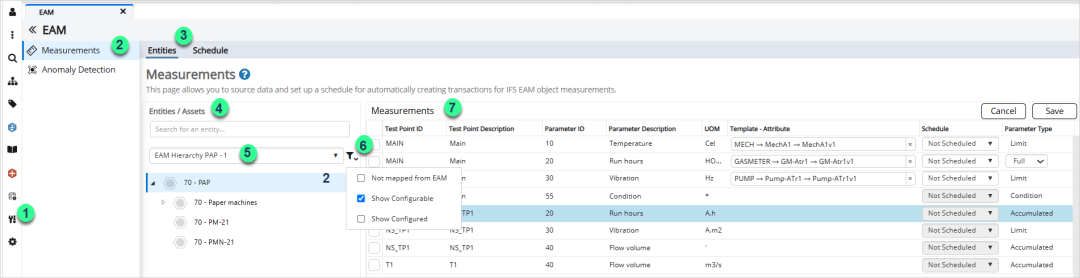
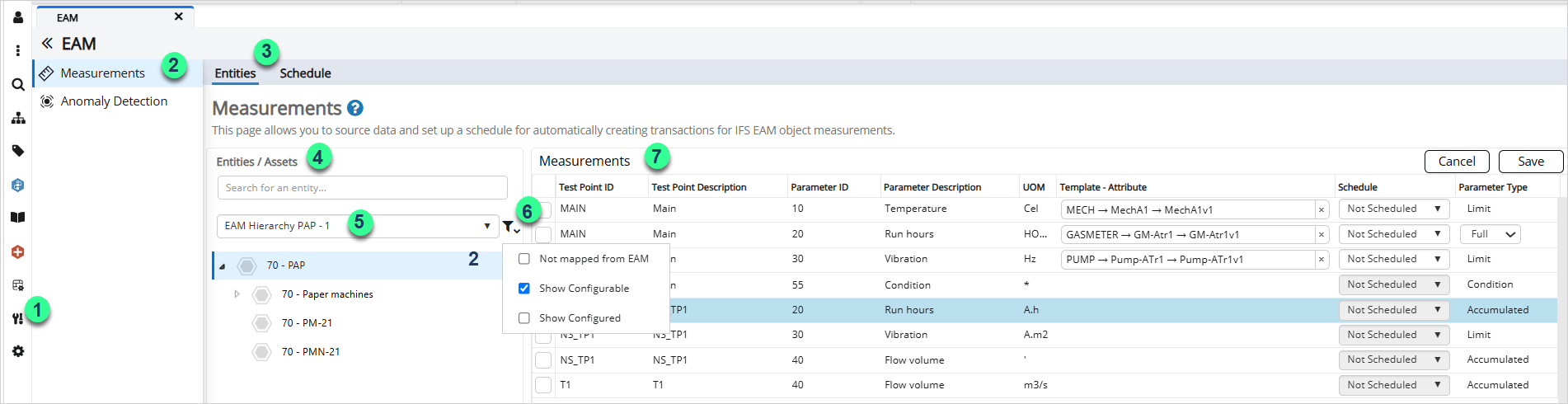
1. Click the EAM icon in the navigation menu.
2. Select Measurements page.
3. Then, select the Entities view.
4. A hierarchy can be selected from the Entities / Assets list.
5. Browse the hierarchy tree and select an entity.
6. The Filter menu can be used to display entities that are not mapped from EAM, entities that can be configured, or entities that already have measurement configurations.
7. The measurements configured for the selected entity are displayed in the Measurements table.
Configuring Measurements
The Entities view displays the measurement configurations for the selected entity. It allows you to view and configure mappings between EAM test point parameters and Explorer template attributes.
The Measurements table can be used to review and update measurement configurations. After making any changes, click Save to apply them.
Measurements Table
The Measurements table displays the available EAM test point parameters for the selected entity and allows measurement mappings to be configured.
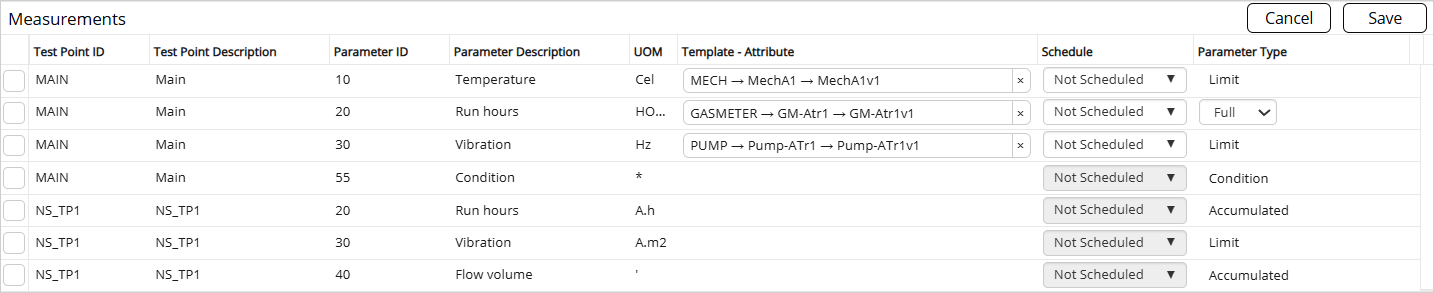
| Test Point ID | The identifier of the EAM test point associated with the measurement. |
| Test Point Description |
The description of the test point retrieved from EAM. |
| Parameter ID | The identifier of the measurement parameter associated with the selected test point. |
| Parameter Description | The name or description of the parameter, such as Temperature, Run Hours, Flow Volume, or Vibration. |
| UOM |
The unit of measure associated with the parameter value. |
| Template - Attribute |
Specifies the Explorer template attribute mapping associated with the selected EAM test point parameter. |
| Schedule |
Select a schedule from the dropdown list. The selected schedule determines when measurement data is collected and uploaded to EAM. The schedules displayed in the list are configured from the Schedule tab. |
| Parameter Type | Displays the measurement parameter type retrieved from EAM. |
Template - Attribute
Template - Attribute shows the configured template attribute mapping. It allows you to associate the selected EAM test point parameter with an Explorer template attribute.
The value is displayed in the format: `Template → Attribute → Attribute Value`
Note:
• A Template-Attribute-Attribute Value combination can only be configured once for the same entity.
• Template-Attribute-Attribute Value mappings are shared between the Measurements and Anomaly Detection configuration tables. Adding, updating, or removing a mapping in one table affects the other table.
Parameter Type
Parameter Type displays the measurement parameter type retrieved from EAM.
The following parameter types are available:
- Limit
- Conditional
- Accumulated
For Accumulated parameters, you can choose the upload type as Full (New Recorded Value) or Delta (Delta Value).
Recent Transactions Table
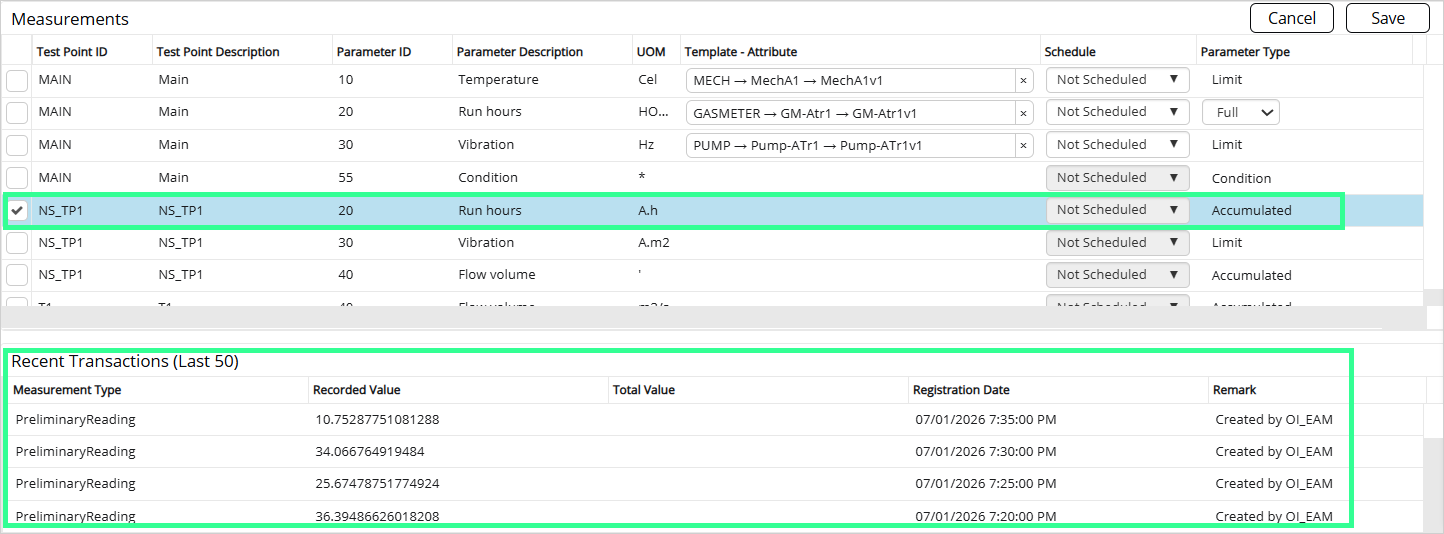
Selecting a measurement in the Measurements table displays its transaction history in the Recent Transactions table.
The table displays up to 50 recent transactions for the selected measurement and can be used to review previously uploaded measurement information.
Measurement Schedules
Measurement schedules determine when measurement data is collected and uploaded to IFS Cloud EAM. The Schedule view is used to create, view, edit, delete, and resubmit measurement schedules.
Adding a Schedule
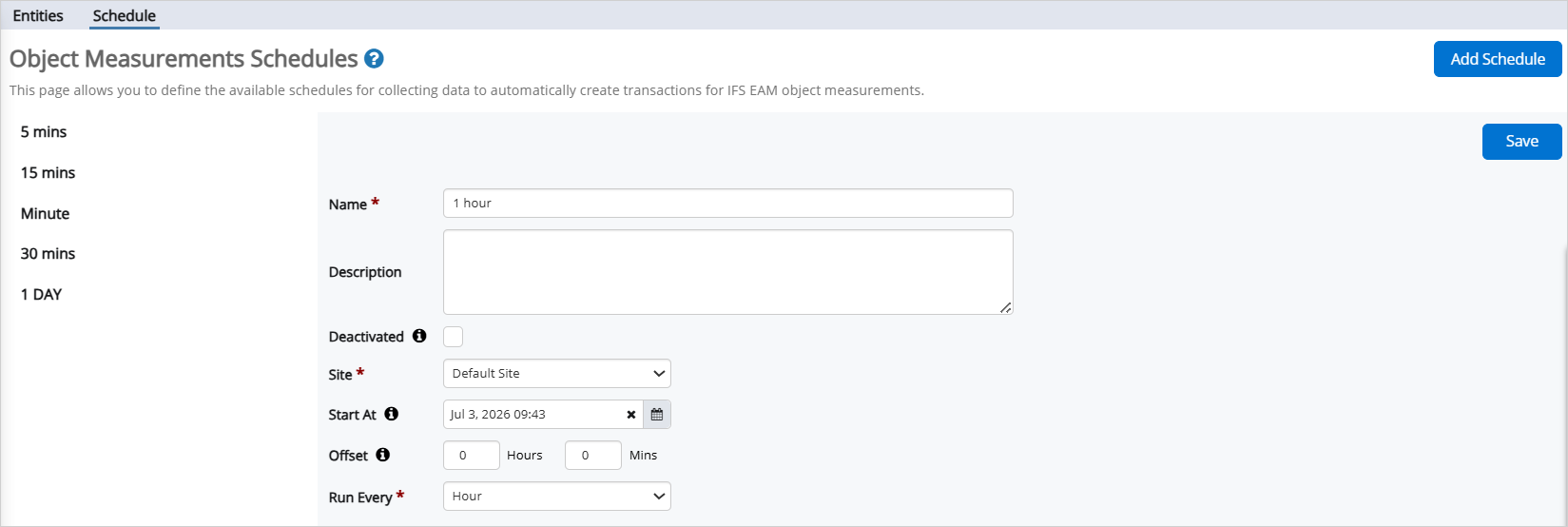
To add a schedule, select the Schedule view and click Add Schedule.
Enter a Name and Description for the schedule.
You can select Deactivated if you need to disable the schedule.
Use the Site dropdown to select the site that the schedule should be associated with.
Configure the Start At date and time. The selected date and time are interpreted using the time zone associated with the selected site.
If required, specify an Offset value in hours and minutes. The offset determines how far back data should be retrieved when the schedule runs. For example, if the schedule runs at 2:00 PM and an offset of 10 minutes is configured, data is retrieved starting from 1:50 PM.
Select a value in the Run Every field to define how frequently the schedule runs.
Click Save and the new schedule is added to the schedules list.
Viewing or Editing a Schedule
Existing schedules are displayed in the schedules list.
When you select a schedule from the list, the schedule configuration is displayed.
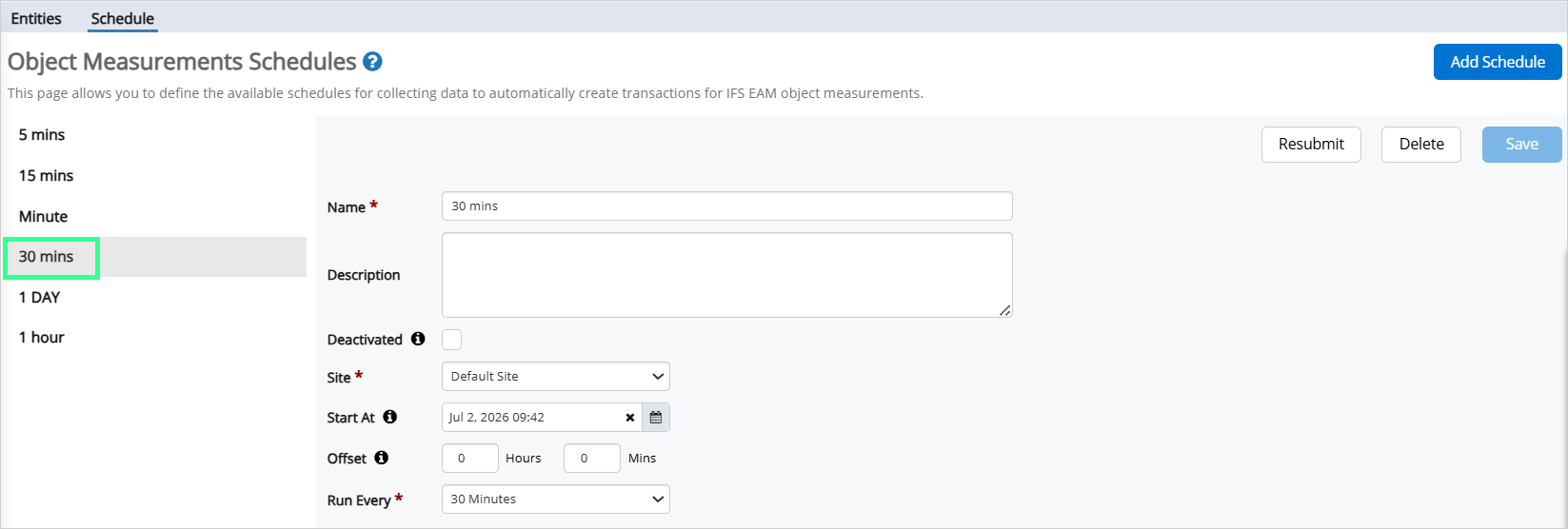
Update the fields if you need to edit the schedule.
Click Save to apply the changes.
Deleting a Schedule
To delete a schedule, select the schedule from the schedules list and click Delete.
A schedule that is currently assigned to a measurement cannot be deleted.
Resubmitting Measurements
The Resubmit option can be used to upload measurement data for a previously configured schedule within a selected time range.
To resubmit a schedule, select a schedule from the schedules list and click Resubmit.
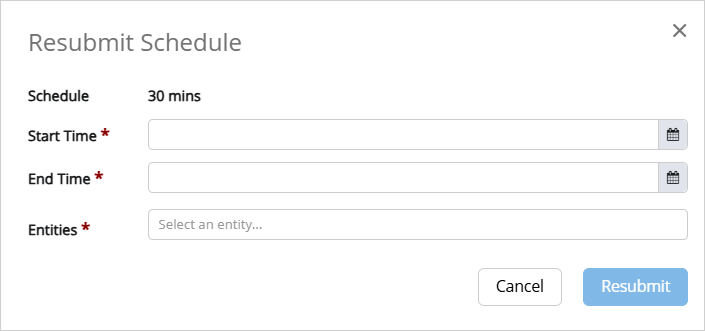
In the Resubmit Schedule dialog, you can specify a Start Time, End Time, and the Entities to be included in the resubmission.
Upon confirmation, measurement data for the selected entities within the specified time range is submitted to EAM.
Release History
- Measurements 26R1 (IFS Cloud Release)