P2 Server Management allows you to export all the data in the P2 Server database to an Excel spreadsheet. The main reason for doing this is so you can more easily update the configuration in bulk. This article shows you how to do this.
Read more

This article applies to P2 Server version 4.4.0. For the latest, see Creating Templates and Attributes. This article is about how to create templates and attributes using P2 Server Management or the Import/Export spreadsheet. For general information on templates and attributes, see: Templates and Attributes. A template in P2 Server is…
Read more

In P2 Server, links can be assigned to templates. When a template with assigned links is designated as the primary template for an entity, those assigned links will appear in the entity's Table of Contents in P2 Explorer. This article describes how to create links in P2 Server Management and group them for display in the P2 Explorer ribbon.
Read more
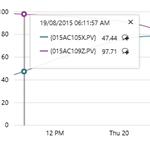
An Explorer trend displays time-series data, such as tags and attributes, over a selected period.
The trend can have multiple hairlines, and you can add comments to the trended tag or attribute.
This help article describes the trend.
Read more
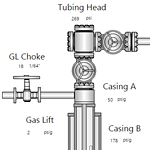
Precision Layout is typically used for pages that contain schematic diagrams, or for other designs where using a Grid Layout is too restrictive or complicated. This article describes how to configure a precision layout in versions 4.4.1 and later of P2 Explorer.
Read more
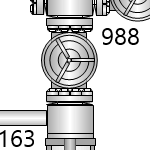
This component is used to display an image on a page. The component can be configured to show one of many different images, where the displayed image is shown when a specific condition is met. Images are often overlayed with text labels, data labels or hotspots.
This article describes how to configure an image in Explorer version 4.4 and later.
Read more
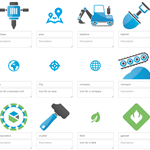
This article describes how to use the Image Gallery in IFS OI Explorer.
Read more

When you first install P2 Server, you will most likely need to import data into a blank database. The best way to do this is to use P2 Server Management to import a specially formatted Excel® spreadsheet. The spreadsheet has been formatted so that the Data Dictionary has the required information to accurately model your data for use in other applications such as P2 Explorer.
Read more
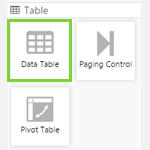
The Data Table displays data in tabular format. The page designer can configure many settings in the design, such as display columns, sorting, grouping, filtering. Users can also change the tables appearance, dynamically.
This tutorial guides you through how to add a Data Table to a page, and applies to version 4.4.5 and later of P2 Explorer.
Read more